Quick answer
To complete your first access to Turnitin, go to Week 1 of the course, open the registration assignment and click "I agree" on the terms shown on screen. Registration is done only once, with nothing to submit at this point.
Before you start
- Have your MUST University platform login and password ready.
- Be enrolled in a course that uses Turnitin.
- Use an updated internet browser, such as Google Chrome or Microsoft Edge.
How it works
Turnitin is the tool used by MUST University for submitting academic assignments. Before you can submit any assignment through it, you need to complete your first access, a simple registration that unlocks the tool for all your courses.
This registration is done through a specific assignment in Week 1 of the course. When you open this assignment, Turnitin displays its terms of use, which must be accepted to unlock access. This happens only once: after you accept the terms, you do not need to repeat the process in other courses.
The assignment used for registration does not need to be submitted at this point. It only serves to unlock your access to Turnitin, and you can continue normally with the other assignments in the course once registration is complete.
Step by step
Step 1: go to Week 1 of the course
Open your internet browser, log in to the MUST University platform with your username and password, and go to Week 1 of the course you are enrolled in.
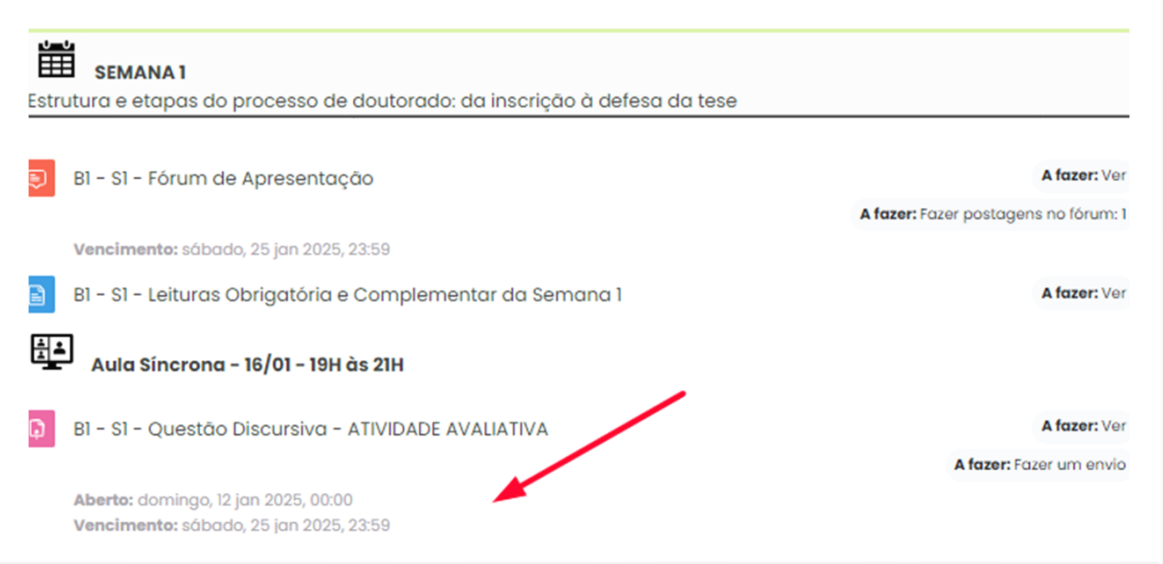
Step 2: open the registration assignment
Find and click the assignment named B1 – S1 – Questão Discursiva – ATIVIDADE AVALIATIVA. This is the assignment that unlocks your access to Turnitin.
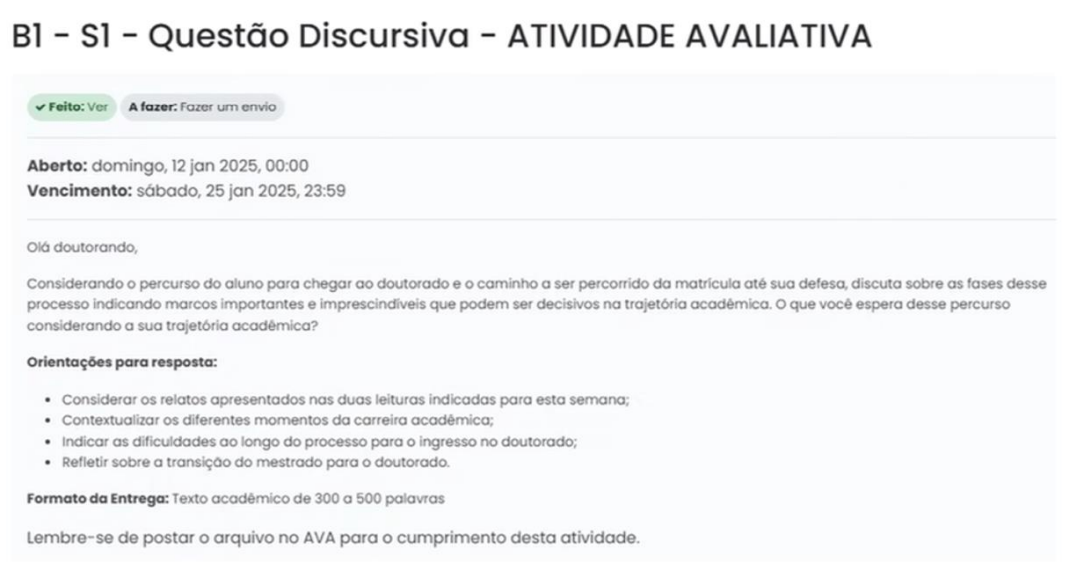
Step 3: accept the Turnitin agreement
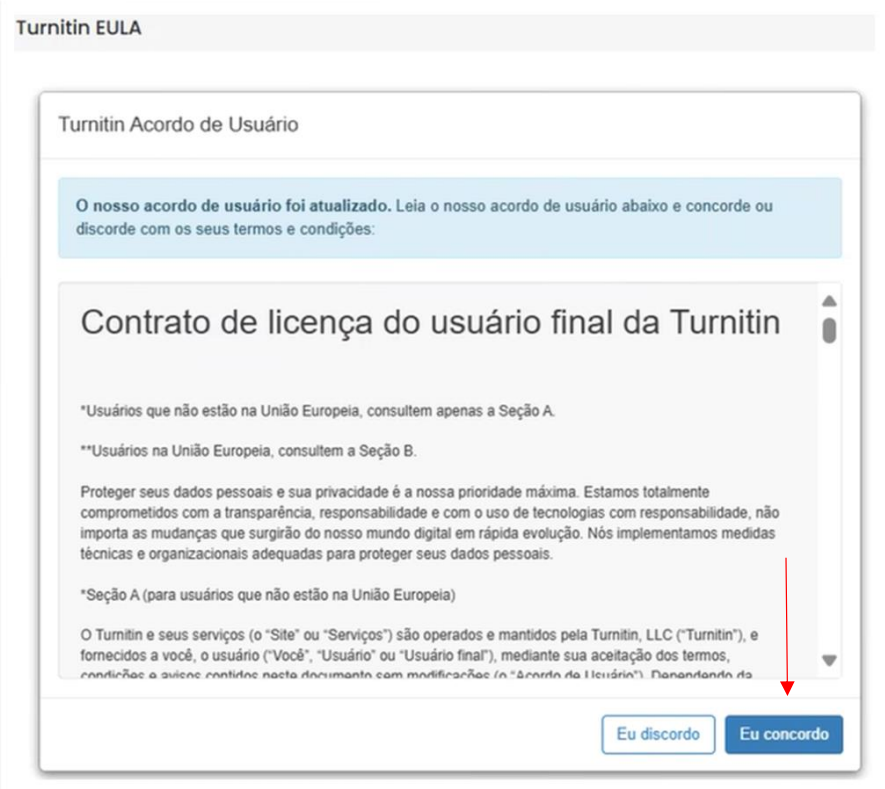
When the assignment page loads, a box with text on a blue background appears, containing the Turnitin terms of use. This box appears only once, but you must accept it to unlock the tool. Click the "I agree" button.

Step 4: wait for the confirmation
After you click "I agree", a confirmation screen appears briefly and closes on its own, taking you back to the assignment screen. Done: your Turnitin registration is complete and does not need to be redone. You do not need to submit this assignment now; you can leave the page and continue browsing the course normally, for example by taking part in the Introduction Forum.
Frequently asked questions
Do I need to submit the Week 1 assignment after accepting the terms?
No. This specific assignment only serves to unlock your access to Turnitin. You do not need to submit it at this point; you can continue normally with the other assignments in the course.
Will I need to accept the Turnitin terms again in other courses?
No. Turnitin registration and acceptance of the agreement are done only once and apply to every course in which you submit assignments through the tool.
The box with the Turnitin terms does not appear on the screen. What do I do?
Confirm that you opened the correct assignment (B1 – S1 – Questão Discursiva – ATIVIDADE AVALIATIVA) in Week 1 and that the page finished loading. If the problem continues, see the options in "Didn't work? Do this".
What happens if I do not complete the first access to Turnitin?
Without completing this initial registration, you will not be able to submit assignments through Turnitin in courses that use the tool. That is why the first access must be completed before you try to submit any assignment.
Didn't work? Do this
| Situation | What to do |
|---|---|
| The box with the Turnitin terms does not appear | Confirm that you opened the assignment B1 – S1 – Questão Discursiva – ATIVIDADE AVALIATIVA in Week 1 of the course and reload the page. If it persists, try another browser, such as Microsoft Edge. |
| The screen does not close after clicking "I agree" | Wait a few seconds, since the confirmation closes automatically. If the screen does not close, refresh the page (F5) and check whether the registration was completed. |
| I cannot find the registration assignment in Week 1 | Confirm that you are in the correct course and week. If the assignment is still not available, contact university support. |
| None of this solved the problem | Open a ticket with the MUST University support team, describing the problem and attaching a screenshot. Click here to open a ticket. |
See also
In the Knowledge Base
Was this article helpful?
That’s Great!
Thank you for your feedback
Sorry! We couldn't be helpful
Thank you for your feedback
Feedback sent
We appreciate your effort and will try to fix the article