Quick Answer
Attach your Article Project or Final Article file in PDF, click "Save changes" to save it as a draft, and if everything looks right, click "Submit assignment as final." Then confirm the work's authorship to complete the submission.
How It Works
Submitting the Article Project and the Final Article happens in stages: attaching the file, saving it as a draft, confirming the final submission, and finally confirming the work's authorship. Only after all these steps does the status change to "Submitted for grading."
Only for the Final Article, the system automatically generates a Turnitin similarity report when the file is attached, while it's still in draft status. Use this report to check the text's originality before confirming the final submission. This check doesn't exist for the Article Project.
The activity itself notes that the professor's feedback is meant for final submissions. Because of this, always confirm the submission within the deadline, rather than leaving the activity in draft status.
Step by Step
- Go to the Article Project or Final Article activity: enter the course, scroll to the "Article Project and Article" block, and click the corresponding stage (Stage 1, Article Project, or Stage 2, Final Article).
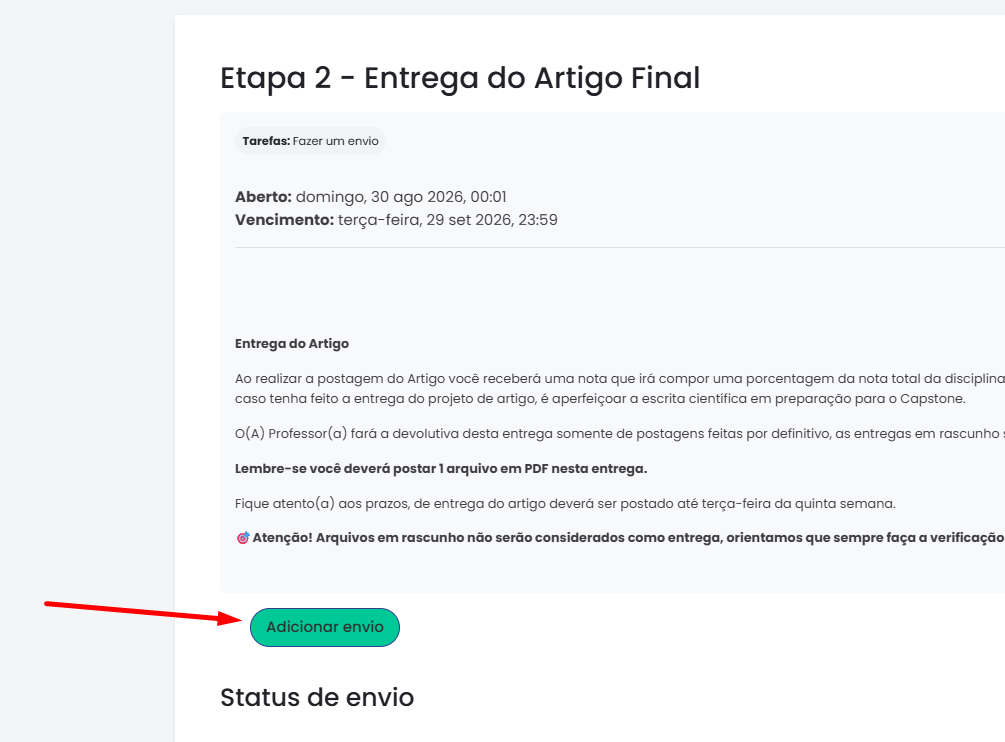
- Click "Add submission."
- Attach your file in PDF format only (20 MB limit, one file per submission).
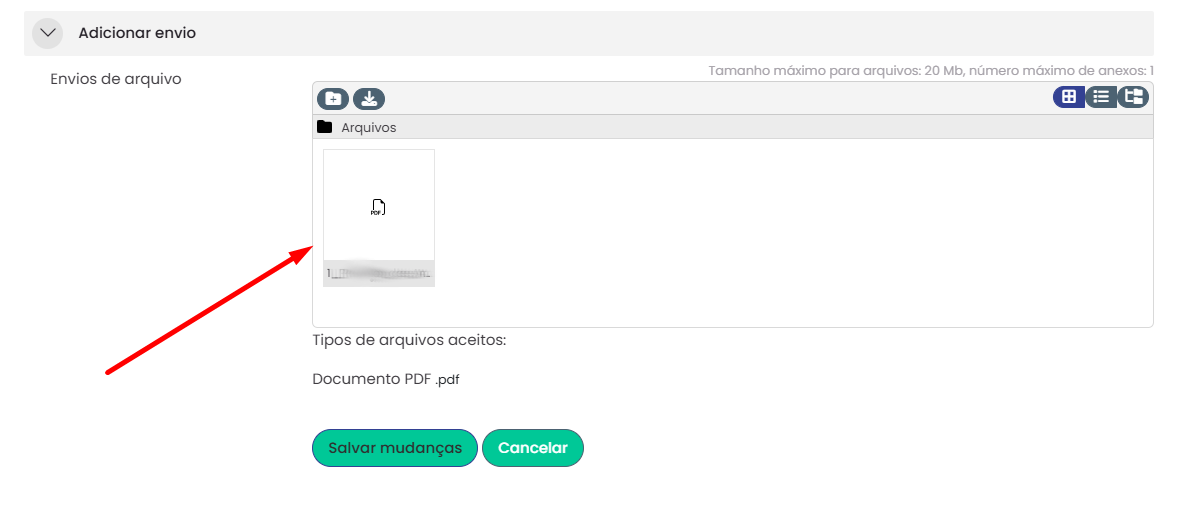
- Click "Save changes." This doesn't finalize the submission yet: the status will show "Draft (not submitted)," and you can still review it, replace the file with the "Edit submission" option, or delete it with the "Remove submission" option.
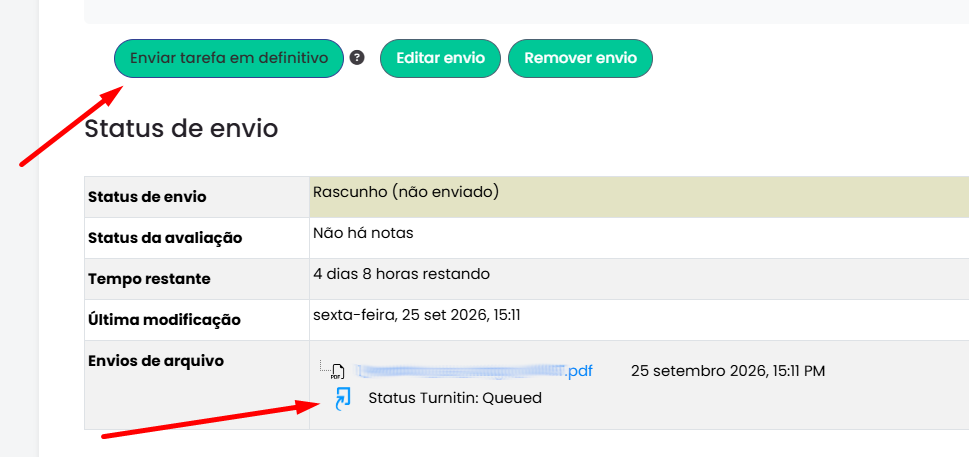
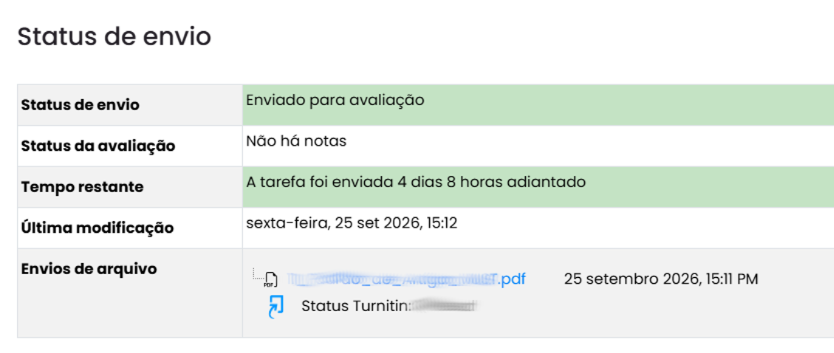
- If you're submitting the Final Article, wait for the Turnitin status to update in the "File submissions" field before continuing. This step doesn't exist for the Article Project.
- Once everything looks right, click "Submit assignment as final." This step is mandatory for the professor to be able to grade your activity.
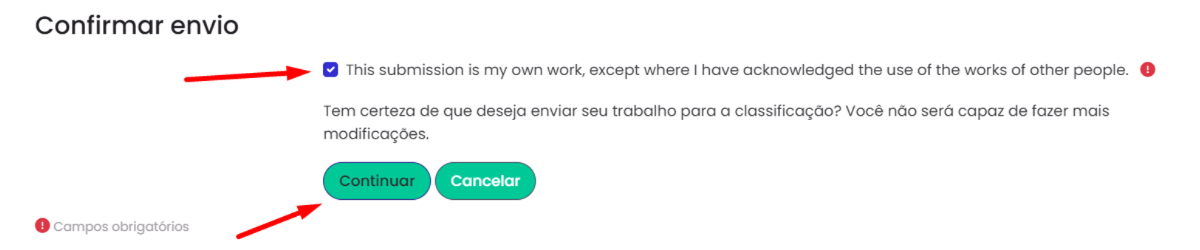
- Check the box confirming the work is your own and click "Continue." Warning: after this point, no further changes can be made to the submission.
- Check the submission status: your activity was submitted successfully once the "Submission status" field shows "Submitted for grading."
Deadlines and Rules
Review your file calmly before clicking "Submit assignment as final." Once you check the authorship box and click "Continue," no further changes can be made to the submission, so avoid leaving this step for the last few minutes before the deadline.
The file must be a single PDF of up to 20 MB. By confirming the work's authorship, you're declaring that the content submitted is your own work. The exact due date for each activity is in the course's academic calendar.
Frequently Asked Questions
What do I need to attach?
Only the work file, in PDF format. For the Final Article, the Turnitin similarity report is generated automatically by the system, so you don't need to attach it separately.
Does clicking "Save changes" already submit my activity?
No. "Save changes" only saves the file as a draft. You still need to click "Submit assignment as final" and confirm the work's authorship to complete the submission.
Can I replace the file after clicking "Save changes"?
Yes, as long as you haven't confirmed the final submission yet. Use the "Edit submission" option to replace the file, or "Remove submission" to delete it and start over.
After clicking "Submit assignment as final" and confirming authorship, can I still change anything?
No. Once you check the authorship box and click "Continue," the system no longer allows changes to the submission.
How do I know my activity was submitted successfully?
The "Submission status" field will show "Submitted for grading" once you've completed all the steps, including confirming authorship.
Didn't Work? Do This
| Situation | What to do |
|---|---|
| I can't find the activity in my course | Make sure you're in the current course (the one that's underway) and scroll to the bottom of the page. If you still can't find it, open a ticket with the Registrar's Office. |
| I clicked "Save changes," but my activity is still in draft status | Go back to the activity and click "Submit assignment as final," then confirm the work's authorship to complete the submission. |
| The file isn't accepted on submission | Make sure the file is a PDF and no larger than 20 MB. If everything checks out and it's still not accepted, open a support ticket. |
| The status doesn't change to "Submitted for grading" even after I confirm | Open a support ticket through the Knowledge Base, describing at which step the submission got stuck. |
See Also
In the Knowledge Base
Was this article helpful?
That’s Great!
Thank you for your feedback
Sorry! We couldn't be helpful
Thank you for your feedback
Feedback sent
We appreciate your effort and will try to fix the article