Quick answer
To access the Pearson Virtual Library for the first time, go to the MUST University portal, click Library, confirm your institutional email, and complete the registration. You will receive a verification code by email; once it is validated, future access is automatic.
Before you start
- Have your MUST institutional email ready, the same one used on the Student Portal.
- Make sure you can access that email's inbox, to receive the verification code sent by the Pearson Library.
- Have the MUST University portal open in your browser.
How it works
The Pearson Virtual Library requires you to complete a registration linked to your institutional email. This registration includes accepting the terms of use, filling out a form with your basic details, and validating a verification code sent by email. Once that registration is validated, the system automatically recognizes your institutional email on future visits.
Step by step
- Go to the MUST University portal and click Library.
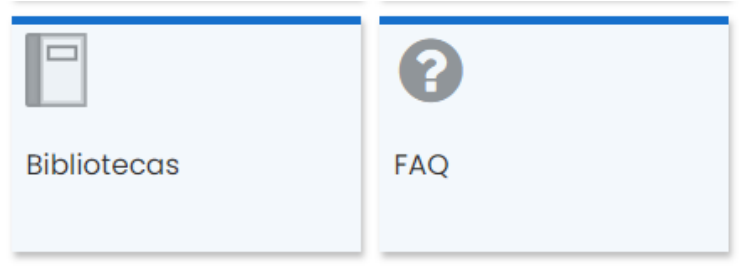
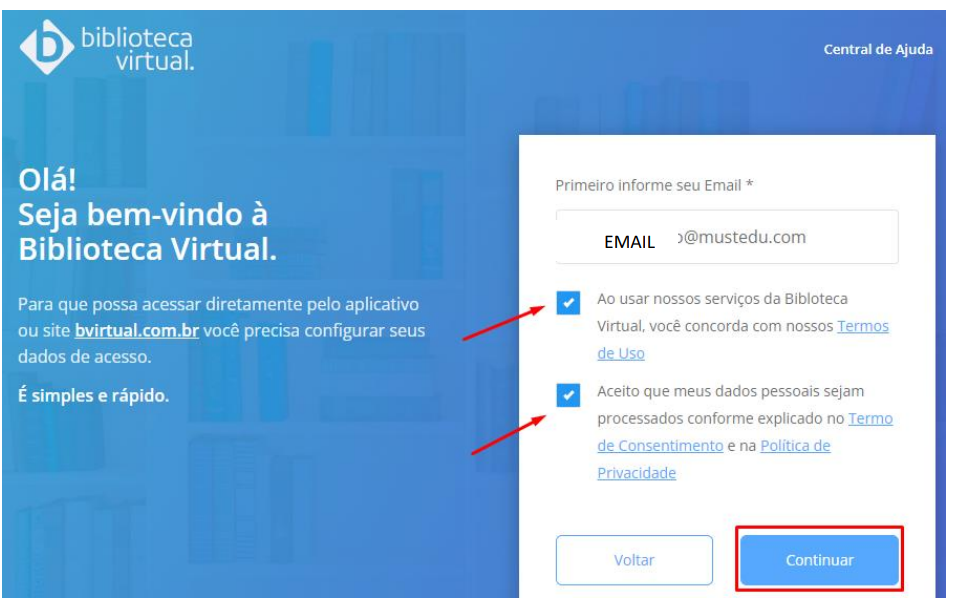
- On the next screen, confirm whether the email field already shows your institutional email. If it does not, type it in manually.
- Check the two checkboxes shown on the screen, usually the terms of use and the privacy policy, and click the Continue button.
- Fill out the form with your details: first name, last name, date of birth (in day/month/year format), and institutional email. The email field may be requested more than once on the form.
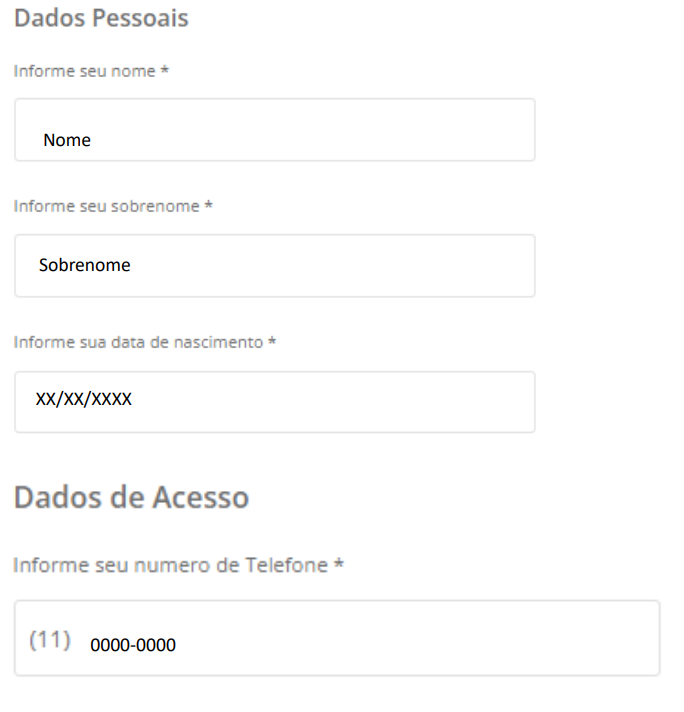
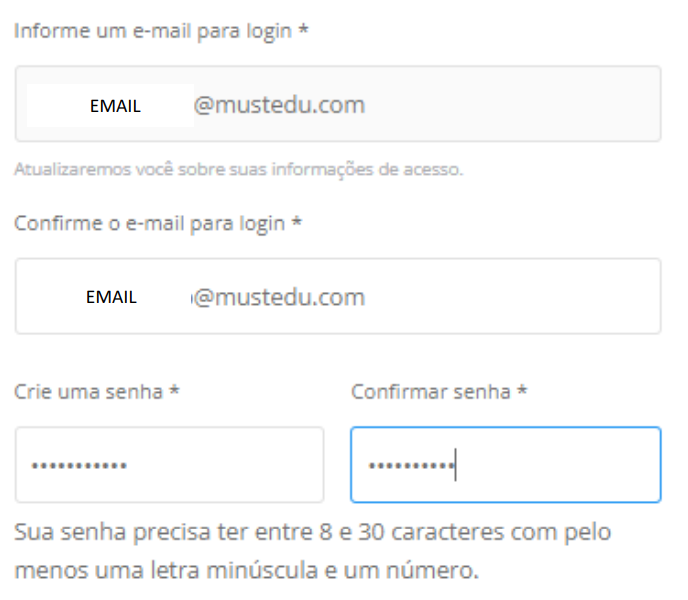
- After filling in all the fields, click the Create my user button.
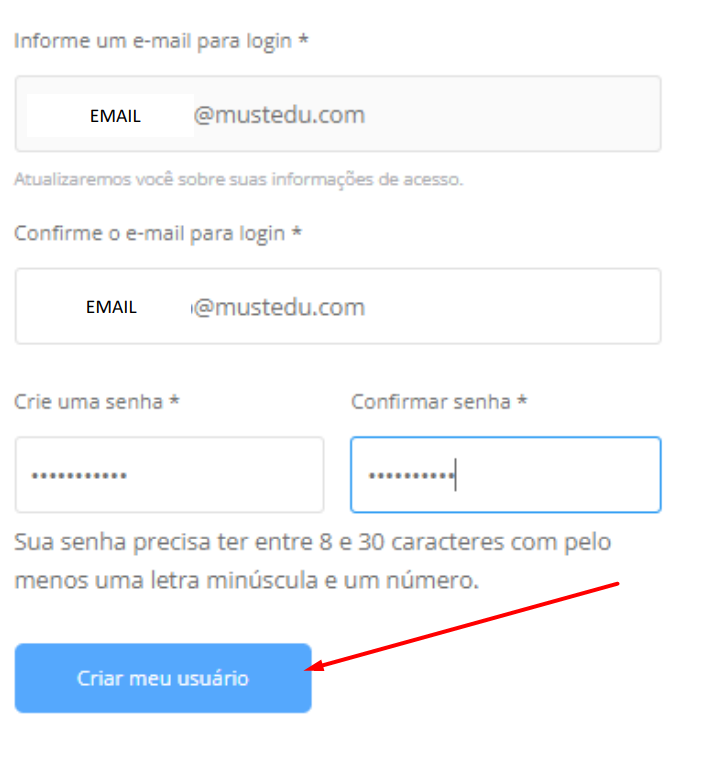
- A verification code will be sent to your institutional email. Check your inbox and look for the message sent by the Pearson Library.
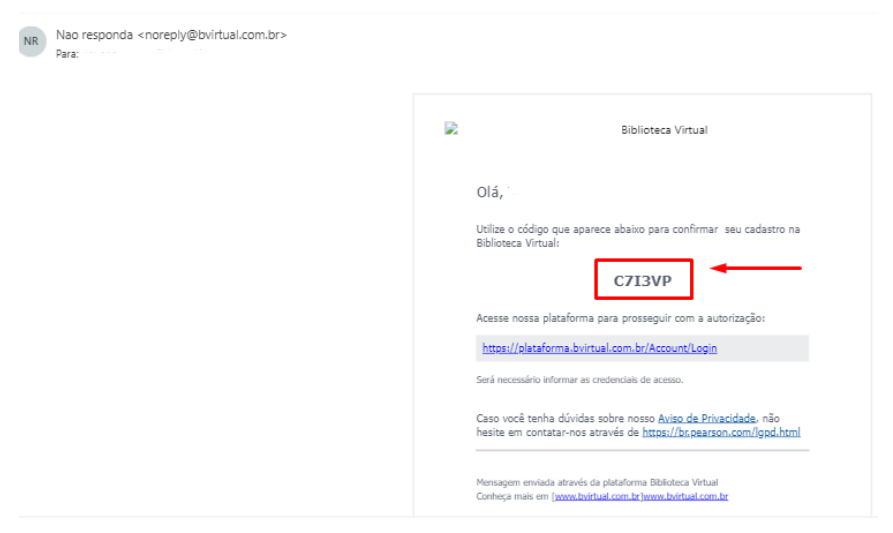
- On the site, click the Continue and enter code option. Paste the code you received in the indicated field and click Validate.
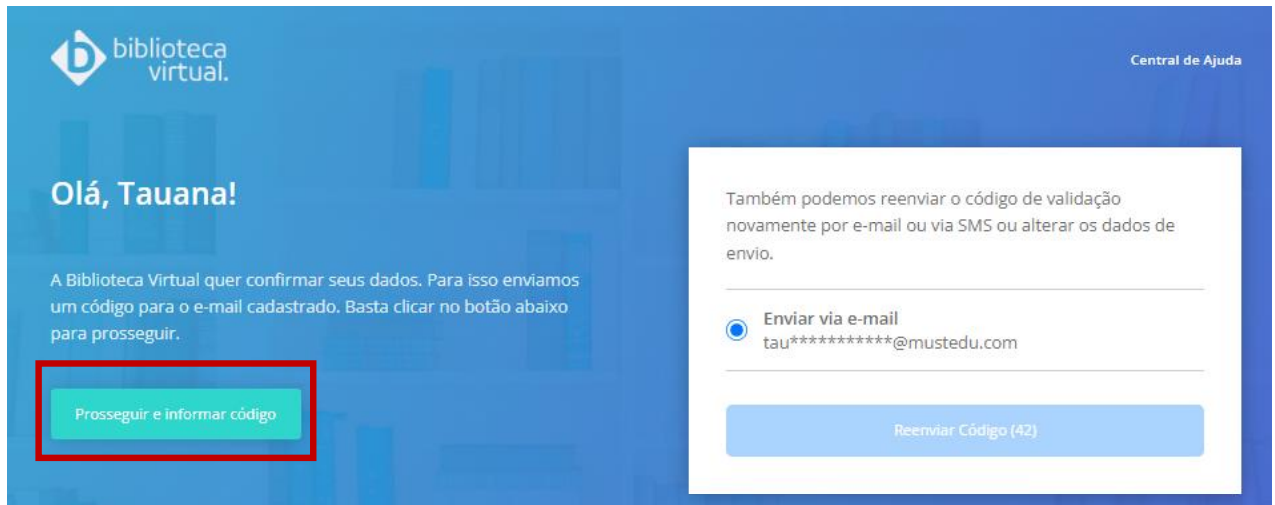
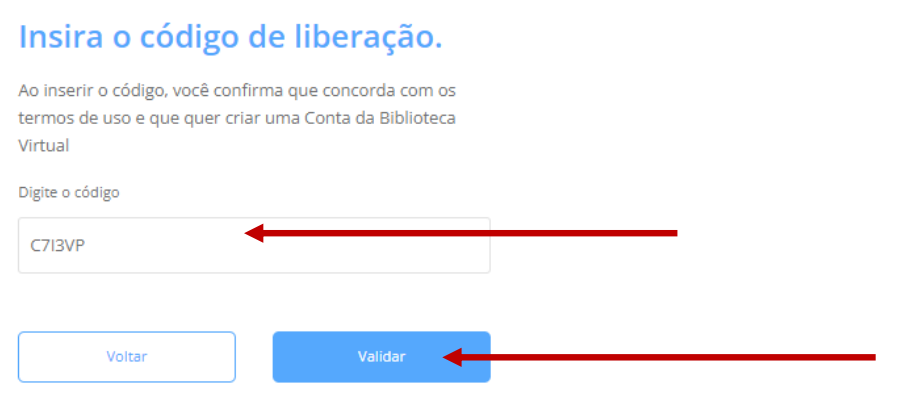
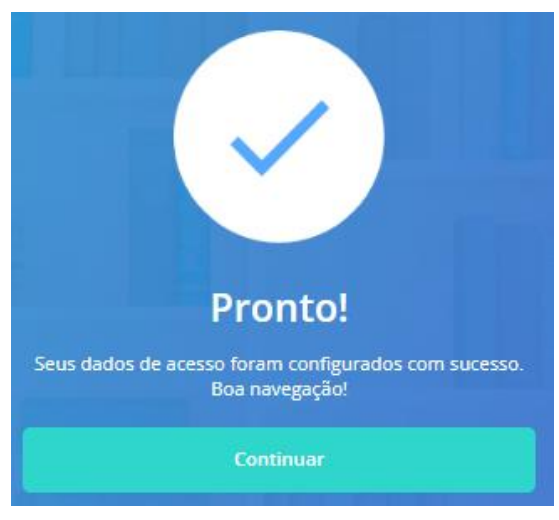
- All done! You can now browse and use the full Pearson Virtual Library collection.
Frequently asked questions
Will I need to repeat this registration the next times I access the Virtual Library?
No. This registration is done only once. The next times, simply go to the MUST University portal and click Library; access is automatic with your institutional email.
I did not receive the email with the Pearson verification code. What should I do?
Check the spam or junk folders of your institutional email inbox. The email is sent by the Pearson Library.
Didn't work? Do this
| Situation | What to do |
|---|---|
| Did not receive the email with the verification code | Check the spam and junk folders of your institutional email inbox. If you still cannot find it after a few minutes, redo the registration from the start. |
| None of this worked | Open a ticket with MUST University support, stating the institutional email you used and the registration step where the problem occurred. |
See also
In the Knowledge Base
Was this article helpful?
That’s Great!
Thank you for your feedback
Sorry! We couldn't be helpful
Thank you for your feedback
Feedback sent
We appreciate your effort and will try to fix the article