Summary
Learn to locate, fill out, and correctly sign the 4 required enrollment documents in the MUST University Student Portal: Student Enrollment Agreement, Grant (Application and Agreement), Retail Installment Contract, and Disclosure Form.
Keywords & Tags
enrollment documents, electronic signature, Student Enrollment Agreement, Grant Application, Grant Agreement, Retail Installment Contract, Disclosure Form, FERPA, Reference, Forms, online form.
Description
During enrollment (Post-Application), students need to fill out and sign 4 required documents that form the contract between the student and MUST University: Student Enrollment Agreement, Grant (Application and Agreement), Retail Installment Contract, and Disclosure Form. This guide explains, step by step, where to find and how to correctly complete each of them. Created especially for those who are not familiar with technology, this article ensures you complete everything with confidence and without mistakes.
✅ Step-by-Step Instructions
Step 1: How to access the documents in the Student Portal
- Go to the Student Portal.
- In the left-hand menu, click "Reference" (or "Arquivos e Formulários" if the platform is in Portuguese).
- Then click "Forms" (or "Formulários").
- The list of required enrollment documents will appear: Student Enrollment Agreement, Grant Application, Grant Agreement, Retail Installment Contract, and Disclosure Form.
- To open any of them, simply click the document's name in the list.
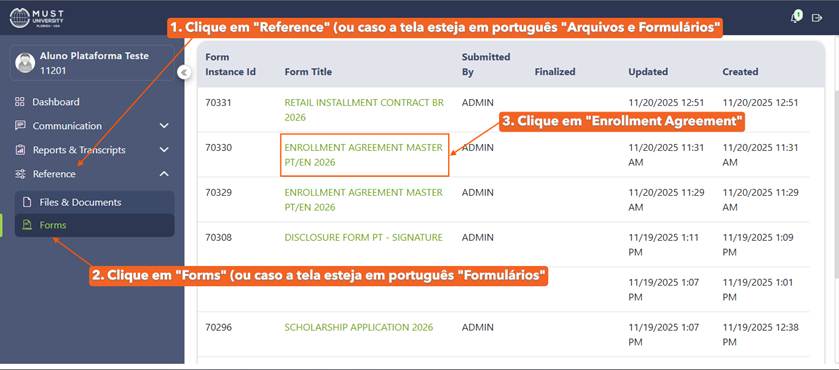
Menu: Reference (or Arquivos e Formulários) → Forms (or Formulários) → document name.
Step 2: How to fill out and sign the Student Enrollment Agreement
- In the forms list, click Student Enrollment Agreement.
- The document is split into 2 parts: first the information in Portuguese, then, right below, the same information in English.
- At the end of the Portuguese section, check the 2 acknowledgment checkboxes.
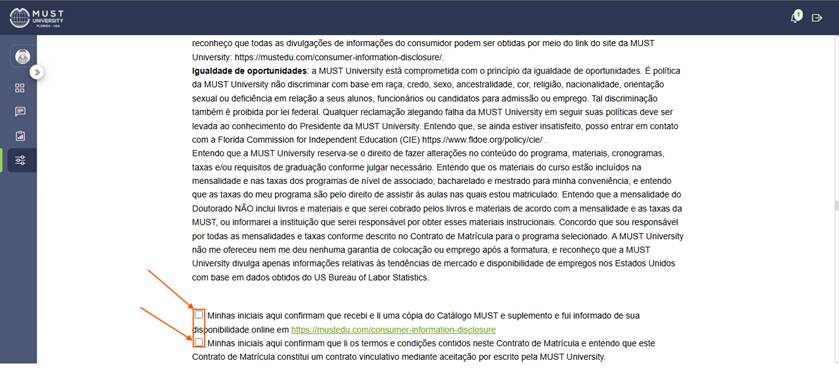
Acknowledgment checkboxes at the end of the Portuguese section.
- Continue scrolling through the English section and, at the end, check the other 2 acknowledgment checkboxes.
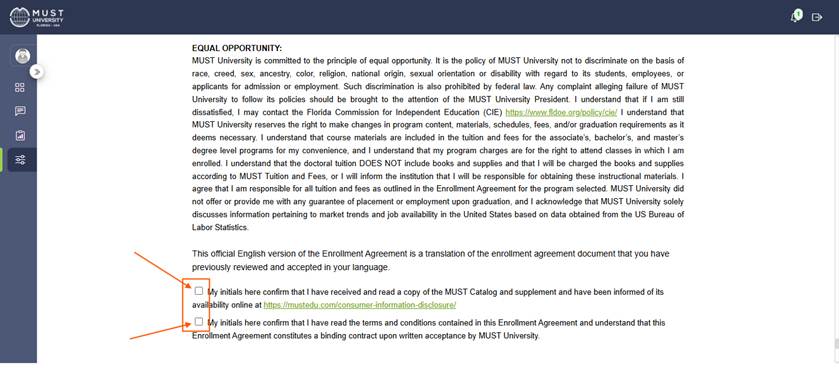
Acknowledgment checkboxes at the end of the English section.
- Once all 4 checkboxes are checked (2 in Portuguese + 2 in English), the "Update Form" button will be enabled.
- Click "Update Form" to finish.
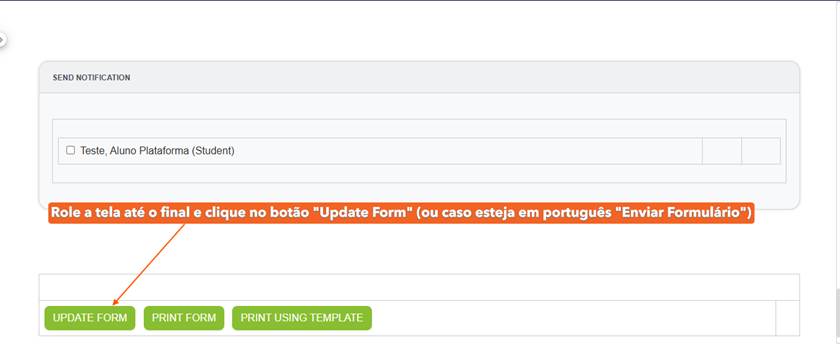
Scroll to the end and click "Update Form."
Step 3: How to fill out and sign the Grant Application and the Grant Agreement
This document is split into two steps — Grant Application and Grant Agreement — and both need to be filled out and submitted separately.
Grant Application
- In the forms list, click "Grant Application 2026."
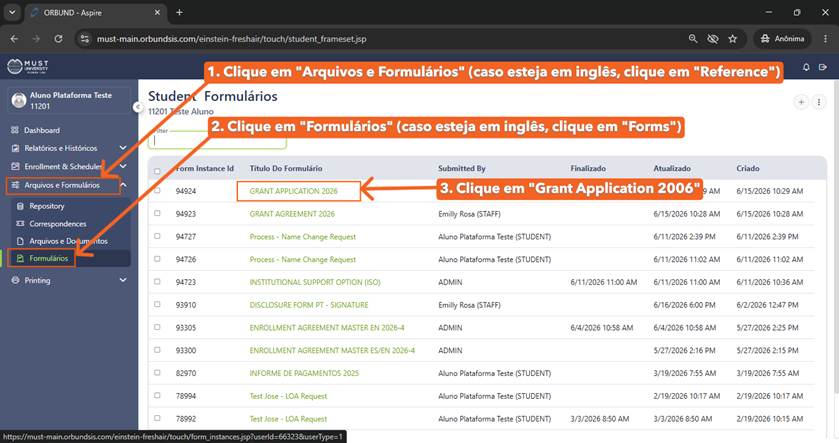
Select "Grant Application 2026" from the forms list.
- Check the box for "Terms & Conditions."
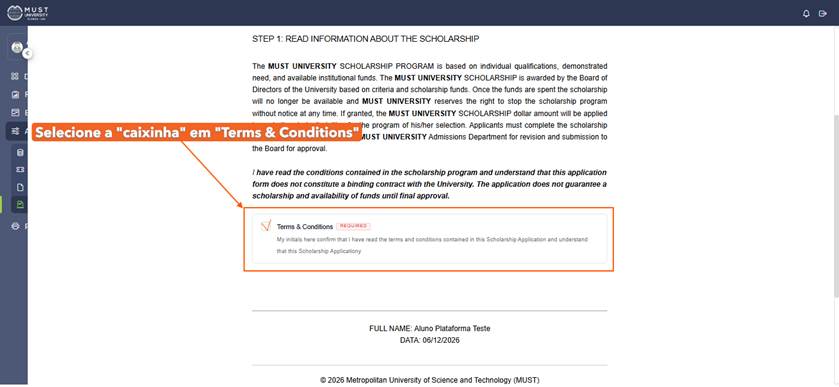
Check the "Terms & Conditions" box.
- Scroll to the end of the page and click "Update Form."
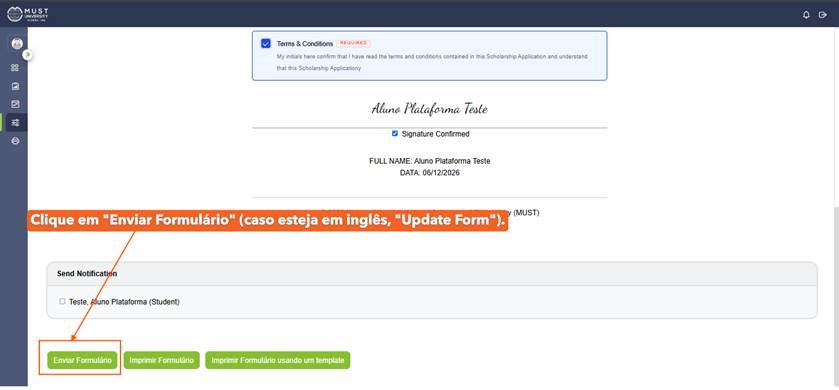
Scroll to the end and click "Update Form."
Grant Agreement
- Next, click "Grant Agreement 2026."
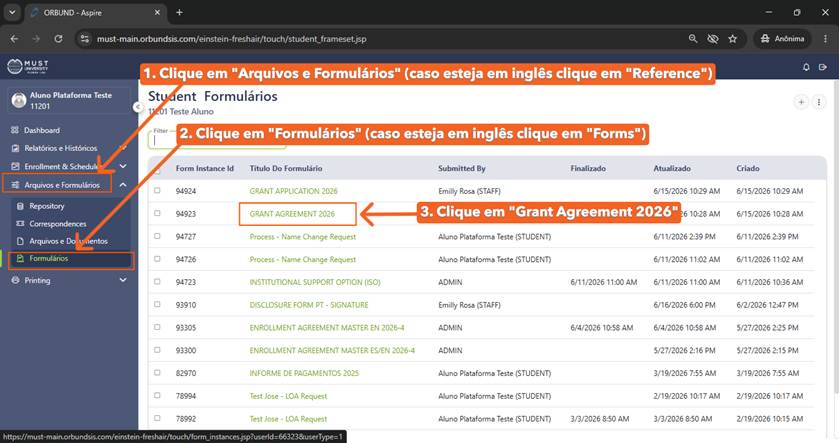
Select "Grant Agreement 2026" from the forms list.
- Check the "Terms & Conditions" box again.
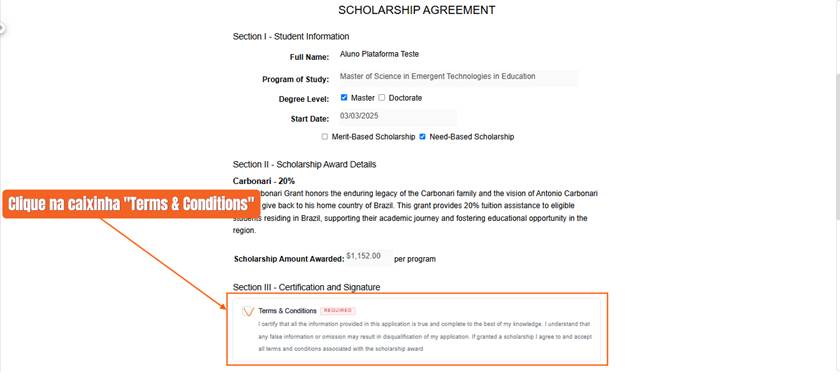
Check the "Terms & Conditions" box.
- Scroll to the end of the page and click "Update Form" to finish.
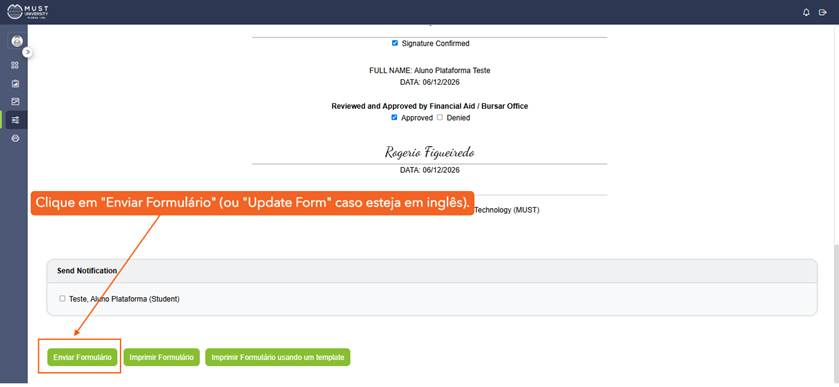
Scroll to the end and click "Update Form."
Step 4: How to fill out and sign the Retail Installment Contract
- In the forms list, click Retail Installment Contract.
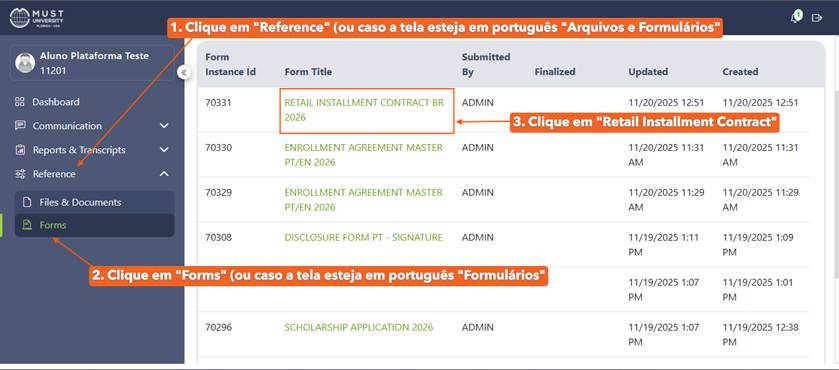
Select "Retail Installment Contract" from the forms list.
- Scroll to the end of the page and click the "Update Form" button.
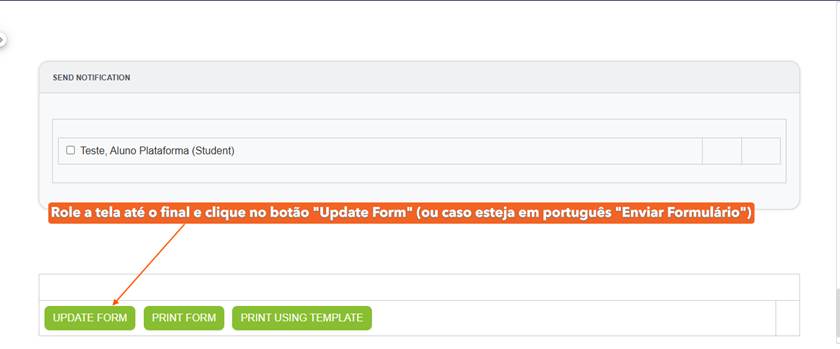
Scroll to the end and click "Update Form."
Step 5: How to fill out and sign the Disclosure Form
- In the forms list, click Disclosure Form.
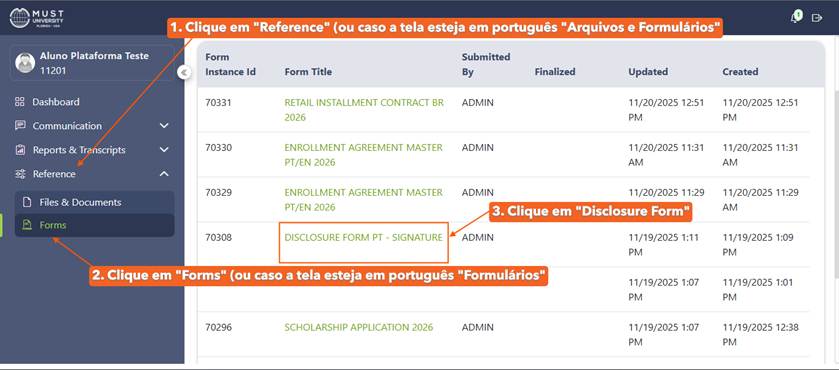
Select "Disclosure Form" from the forms list.
- In the "Image/Likeness Use" field, keep the "Yes" option selected.
- In the "FERPA (Family Educational Rights and Privacy Act)" field, select only one of the two available checkboxes.
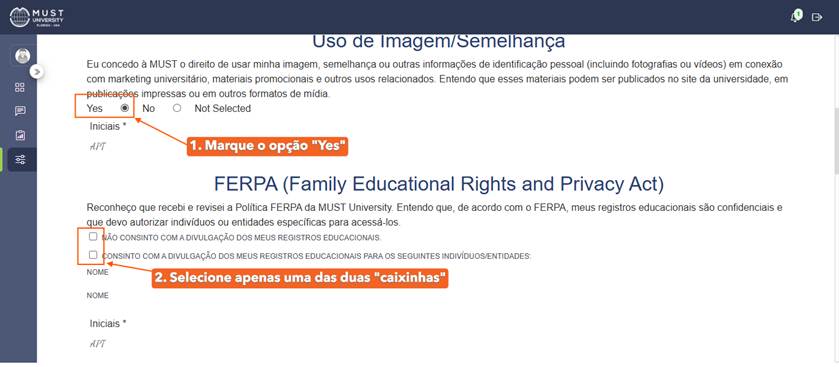
Image/Likeness Use: keep "Yes" selected. FERPA: select only one of the two options.
- Scroll to the end of the page and click "Update Form."
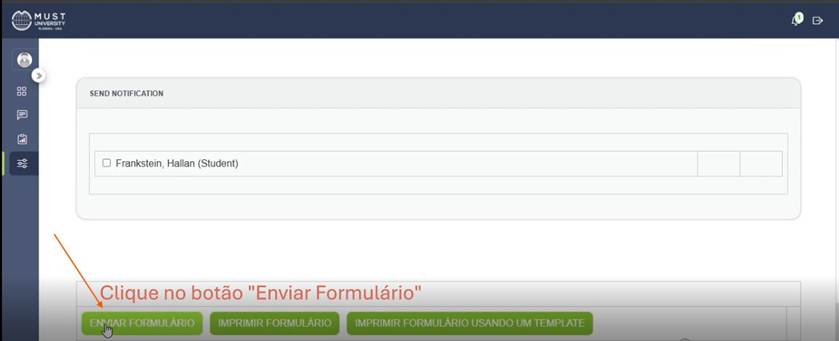
Scroll to the end and click "Update Form."
Note: the terms-acceptance checkbox ("I Agree to be legally...") shown in the tutorial video has been removed from this document — you can go straight to the submit button.
Step 6: Next steps after signing
After signing and submitting all 4 documents (Student Enrollment Agreement, Grant Application, Grant Agreement, Retail Installment Contract, and Disclosure Form), the next step is to pay your enrollment fee to complete your admission.
Useful Tips
- If a signature or checkbox doesn't work, try refreshing the page or using a different browser.
- Make sure you've checked all required boxes before submitting — without them, the submit button won't be enabled.
- Always save a screenshot of each document's submission confirmation screen.
Common Issues and Solutions
Anticipates frequent questions and reduces the need to open a ticket.
Issue | Solution |
Document won't open | Try refreshing the page or switching browsers. |
The "Update Form" button doesn't activate | Check that you've marked all required checkboxes on the document (e.g., acknowledgment confirmations or Terms & Conditions) — without them, the button stays disabled. |
I don't know if my Portal is in Portuguese or English | Menu and button names change language automatically. Use the equivalent names given in this article (e.g., Reference / Arquivos e Formulários; Update Form / Enviar Formulário). |
I can't sign or check a box | Try refreshing the page or using another browser/device. |
Submission won't confirm | Check your internet connection and click the submit button again. |
Relevant Links and Resources
- Access the Student Portal
- MUST Help Center
- How to Pay the Enrollment Fee at MUST University
- How to Access the Portal and Make Payments at MUST University
Contact Support
If you have questions filling out or signing any document, contact Student Support:
- Email: bursar@mustedu.freshdesk.com
- Open a support ticket
MUST UNIVERSITY
70 SW 10th St, Deerfield Beach, FL 33441, USA
info@mustedu.com | www.mustedu.com
MUST University®: licensed by Florida Commission for Independent Education. License: 5593.
Was this article helpful?
That’s Great!
Thank you for your feedback
Sorry! We couldn't be helpful
Thank you for your feedback
Feedback sent
We appreciate your effort and will try to fix the article