Summary
Learn how to access the MUST University Student Portal, understand your financial Dashboard and Payment Plan, and make or prepay your tuition installments safely and clearly.
Keywords & Tags
Student Portal, Payment, MUST University, Orbund, Flywire, Boleto, PIX, Credit Card, Dashboard, Payment Plan, Payment prepayment.
Description
This article was created to guide MUST University students — especially those who are not familiar with technology — in accessing the Student Portal, understanding the information on their payment Dashboard, and making payments simply and securely. The step-by-step guide is clear and detailed, explaining how to interpret the Payment Plan and Recurring Payment, as well as showing how to pay or prepay tuition via Boleto, PIX, or Credit Card. At the end, we include useful tips, solutions to the most common errors, and how to contact support.
Step-by-Step Instructions
Step 1: How to access the Student Portal?
- All payments must be made directly through your Student Portal.
- Go to the Student Portal.
- On the login screen, click the "ROLE" field and select the Student option.
- Click "SIGN IN WITH MICROSOFT".
- Enter your institutional email (@student.mustedu.com) and your password.
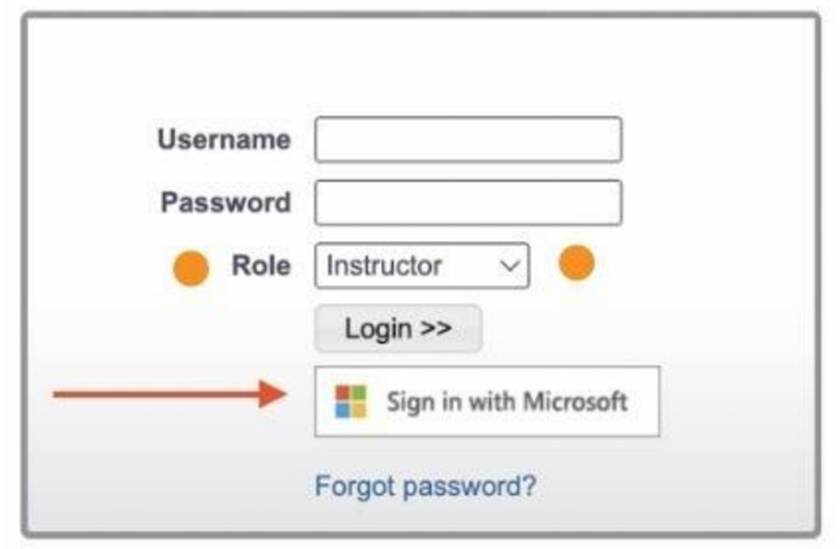
Student Portal login screen.
Step 2: How to avoid login problems?
If you're having trouble logging in, follow these guidelines:
- Sign out of other Microsoft accounts (such as Hotmail or Outlook) that may be connected in your browser.
- Open an incognito/private window:
- Chrome or Edge: Ctrl + Shift + N
- Firefox or Safari: Ctrl + Shift + P
- Or use a different browser (e.g., Firefox, if you were using Chrome).
- If the problem continues, submit a support ticket.
Step 3: How to understand the payment Dashboard?
When you access the Student Portal, you automatically see your financial Dashboard, with a summary of your payment status:
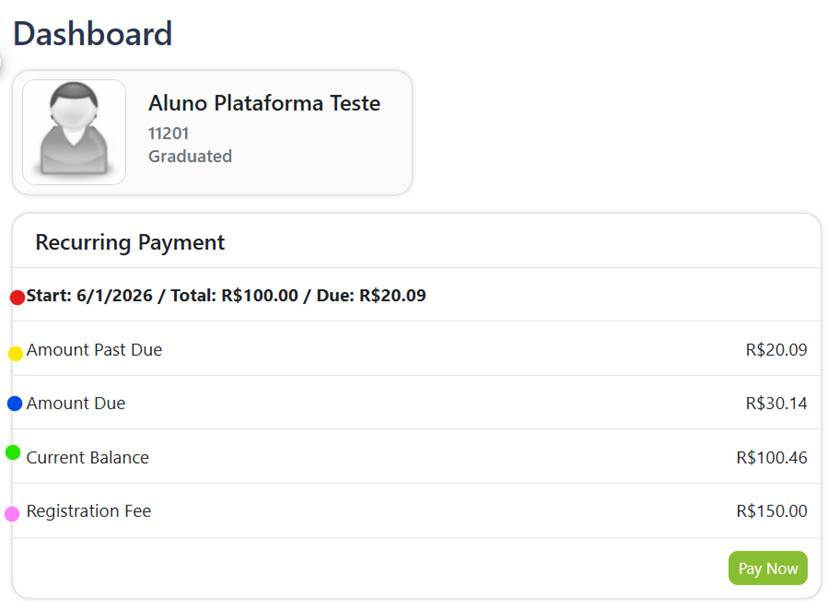
Student Portal financial Dashboard.
- Start: shows the date of your first due installment. Its purpose is to indicate when your current financial plan began. If you are an active student, this date will always stay the same — it does NOT indicate which installment you are currently paying, but rather the first due date of the current plan.
- Amount Past Due: shows the amount that is already overdue.
- Amount Due: shows the overdue installment plus the current installment (which is still due).
- Current Balance: shows the total amount remaining to fully pay off your payment plan.
- Separate fees, such as the enrollment fee, appear below the Current Balance. After payment, the fee disappears from your Dashboard.
Step 4: How to understand your Payment Plan?
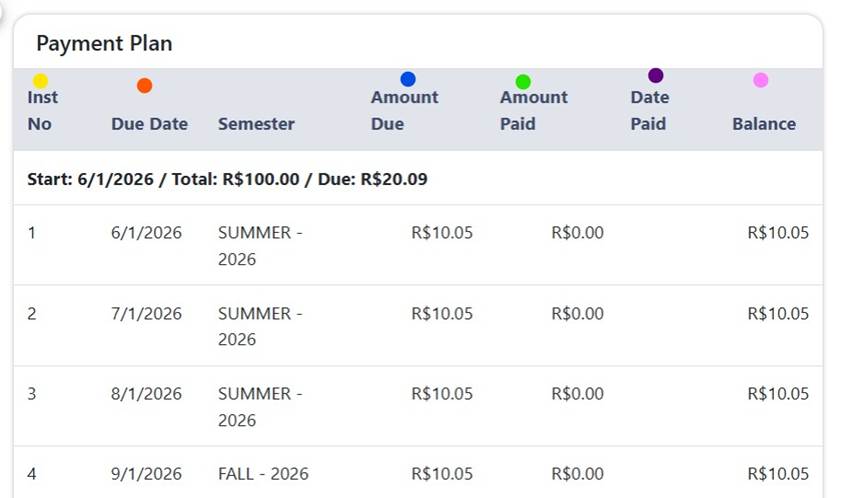
Payment Plan table in the Student Portal.
- Inst No: installment number.
- Due Date: installment due date (mm/dd/yyyy).
- Amount Due: installment amount.
- Amount Paid: amount paid.
- Date Paid: date the payment was confirmed.
- Balance: how much is still owed on that installment.
Step 5: How do I know which installment I'm paying or what I've already paid?
- To check whether an installment has already been paid, look at the Amount Paid, Date Paid, and Balance fields: if the Balance shows $0.00, the installment has been paid, and the Date Paid field shows the payment date.
- Payments are always sequential: every payment made settles the most overdue installment first. So, to find out which installment is currently being paid, check the table, in order, for the first installment whose Balance is not yet $0.00 — that is the installment that will be settled when a new payment is made.
Step 6: How to make a payment?
- Click PAY NOW.
- Choose the amount you want to pay (overdue installment or total).
- Click SUBMIT PAYMENT.
- On the next screen, click PROCESS FLYWIRE PAYMENT.
- Review the details and click NEXT.
- Choose your payment method:
- Boleto: enter your CPF (Brazilian tax ID), accept the terms, and click MAKE PAYMENT. The boleto will be generated — save it and pay at your bank or banking app.
- PIX: enter your CPF, accept the terms, click NEXT, then click MAKE PAYMENT. A QR Code and the "Pix Copy and Paste" option will be generated.
- Credit or Debit Card: enter your CPF, accept the terms, click NEXT, enter your card details, and complete the payment.
- Accept the Terms of Use and Privacy Policy.
- Click MAKE PAYMENT. ✅ Done! Your enrollment or tuition installment will be paid.
Step 7: How to make advance payments?
- Click PAY NOW.
- Select OTHER AMOUNT.
- Enter the amount you want to pay (e.g., 1200.50). Use a period, not a comma.
- Follow the same steps as in Step 6 to complete the payment.
Useful Tips
- If paying with PIX, have your banking app open to scan the QR Code.
- A boleto can take up to 3 business days to be confirmed. With card or PIX, confirmation is faster.
- Always save a note or screenshot of your proof of payment.
Common Issues and Solutions
Anticipates frequent questions and reduces the need to open a ticket.
Issue | Solution |
Access denied to the portal | Try an incognito window or a different browser. |
Page won't load | Check your internet connection. |
Payment doesn't appear on the Dashboard | Wait up to 72 business hours for boletos, or send proof of payment to support. |
CPF not accepted | Check that you typed it correctly, numbers only. |
An installment's Balance doesn't reach zero after payment | Wait for confirmation of the payment method used (boleto can take up to 3 business days) and check the Dashboard again. |
Relevant Links and Resources
- Access the Student Portal
- MUST Help Center
- How to Pay the Enrollment Fee at MUST University
- How to Fill Out and Sign Documents in the Student Portal
Contact Support
If you can't access your account or have questions about payments, contact the Bursar's Office:
- Email: bursar@mustedu.freshdesk.com
- Open a support ticket
MUST UNIVERSITY
70 SW 10th St, Deerfield Beach, FL 33441, USA
info@mustedu.com | www.mustedu.com
MUST University®: licensed by Florida Commission for Independent Education. License: 5593.
Was this article helpful?
That’s Great!
Thank you for your feedback
Sorry! We couldn't be helpful
Thank you for your feedback
Feedback sent
We appreciate your effort and will try to fix the article