Quick answer
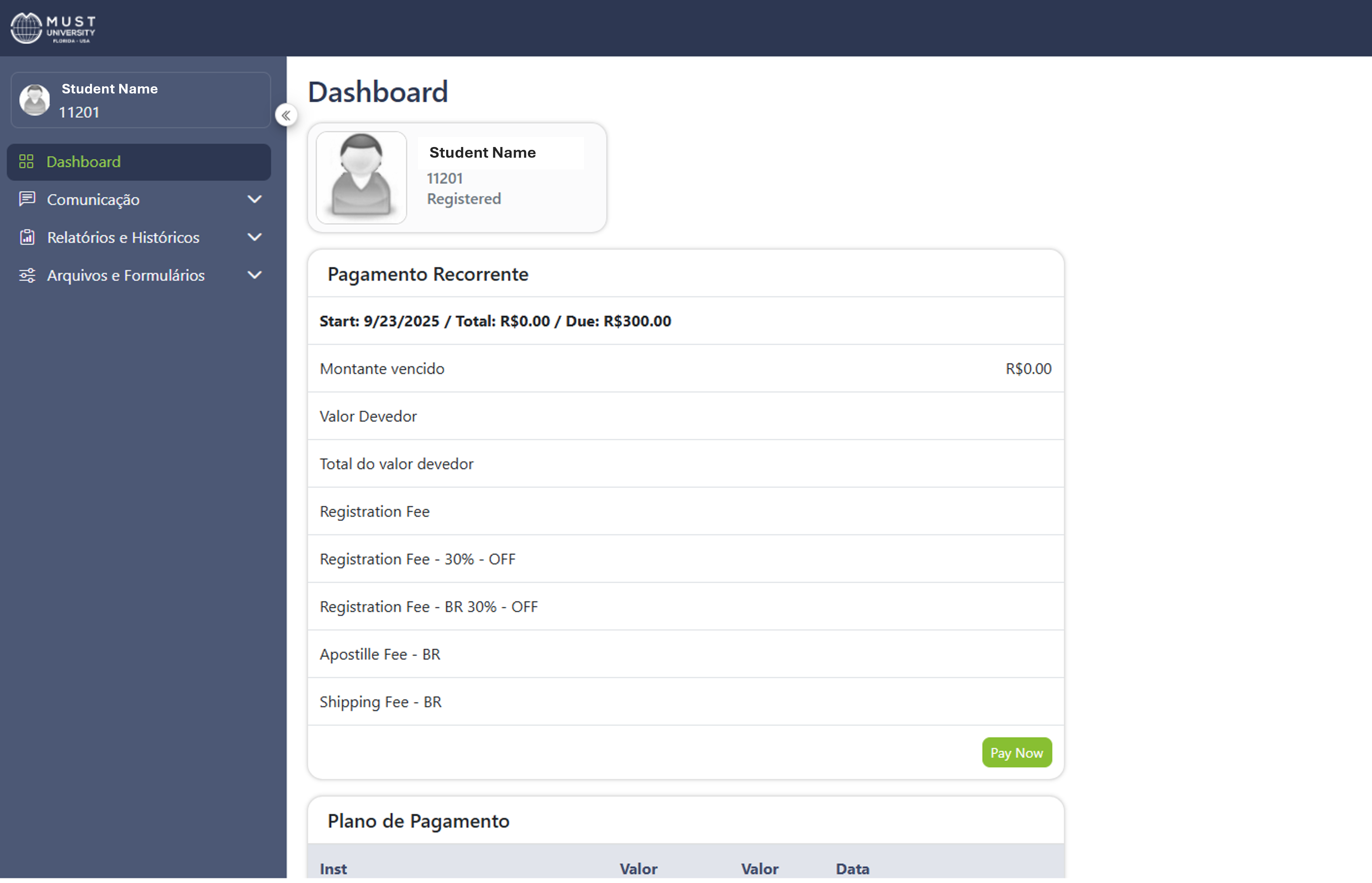
The Student Portal has a new visual interface with more intuitive navigation. The access link has not changed, and you will be redirected automatically to the new version. All your data, documents and services remain available as usual. No action is required.
How it works
MUST University updated the look of the Student Portal to make navigation more intuitive. The access address stays the same: when you sign in through your usual link, you are automatically redirected to the new version of the portal. Only the visual design and the layout of the screens changed; all the content, documents and services that were already available remain accessible as usual.
The update is applied automatically and does not require any installation, configuration or additional registration from students.
Step by step
Step 1 - Access
Go to the Student Portal using the same link you already use.
Step 2 - Sign in
Sign in with your institutional credentials, as you always have.
Step 3 - Redirect
You will be automatically taken to the new version of the portal.
Step 4 - Continue as usual
Keep using the portal normally for your academic activities: all your data, documents and services remain available, just with a new visual layout.
Frequently asked questions
Do I need to do anything to use the new interface?
No. The update is applied automatically to the Student Portal, and no action is required from students.
Did the portal access link change?
No. The access address stays the same; only the visual design and the layout of the screens were updated.
Will I lose access to my data, documents or services?
No. Everything that was already available in the portal remains accessible as usual after the update.
Why does the portal screen look different from what I knew?
It is only a visual and layout change, made to make navigation more intuitive.
Didn't work? Try this
| Situation | What to do |
|---|---|
| I cannot access the Student Portal | Clear your browser cache or try accessing from another device. |
| The page does not load correctly or shows a visual error | Refresh the page (F5 key) or try a different browser. |
| None of the options above solved the problem | Open a ticket with technical support through the support portal, click here. |
See also
Was this article helpful?
That’s Great!
Thank you for your feedback
Sorry! We couldn't be helpful
Thank you for your feedback
Feedback sent
We appreciate your effort and will try to fix the article