Summary
This tutorial consolidates and standardizes the key guidelines discussed during the Freshdesk institutional training, addressing common questions related to ticket creation, handling multiple issues, proper use of status, SLA behavior, overdue tickets, inter-department transfers, filters, internal notes, and the use of the knowledge base.
The objective is to ensure operational clarity, prevent ticket loss, and improve both student experience and internal team efficiency.
Keywords & Tags
Freshdesk, ticket creation, SLA, overdue tickets, ticket status, ticket transfer, internal notes, filters, knowledge base, student support
Description
During daily use of Freshdesk, incorrect practices can directly impact SLA performance, reporting accuracy, and the overall perception of service quality from the student’s perspective.
This document consolidates practical guidelines aligned with the institution’s operational reality, serving as a single reference for agents, coordinators, and all teams involved in the support process.
1. Ticket Creation
What happens when a student opens a ticket with multiple different issues?
When a student describes more than one issue in the same ticket (e.g., financial, academic, and access-related), Freshdesk treats all the information as a single ticket, with one single SLA, regardless of how many departments are involved.
Before going deeper into this topic, it is important to understand the concept of SLA (Service Level Agreement).
The SLA defines the expected timeframes for the first response and for the resolution of a ticket. It is one of the main indicators used to measure service quality and is reflected both in the operational view and in Freshdesk reports.
This scenario may lead to:
- Difficulty in prioritization
- Excessive transfers between departments
- The ticket becoming overdue due to a single pending issue
Is it better to keep everything in a single ticket or split by topic?
Recommended best practice:
Whenever possible, students should separate issues into different tickets, especially when they:
- Involve different departments
- Have different priorities
- Require independent actions
Example:
- Financial ticket
- Academic ticket
- IT ticket
Each ticket will have its own SLA and assigned agent.
How to prioritize when there are multiple issues in the same ticket?
When it is not possible to separate the issues immediately:
- Identify the most critical issue
- Address the most critical issue first
- Register the remaining points using an internal note, tagging the responsible agent if necessary
- Instruct the student to open additional tickets, if needed
When a student opens a ticket with multiple requests, you can separate each topic by creating child tickets.
This helps improve control, organization, and proper routing to different teams.
Use this feature when:
- The ticket contains more than one issue or request
- The topics need to be handled by different teams (Finance, IT, Academic, etc.)
- You want to keep the ticket history organized without mixing contexts
Step-by-step to create a child ticket
1.1 Access the original ticket
- Go to the ticket created by the student
- Open it normally to view the details.
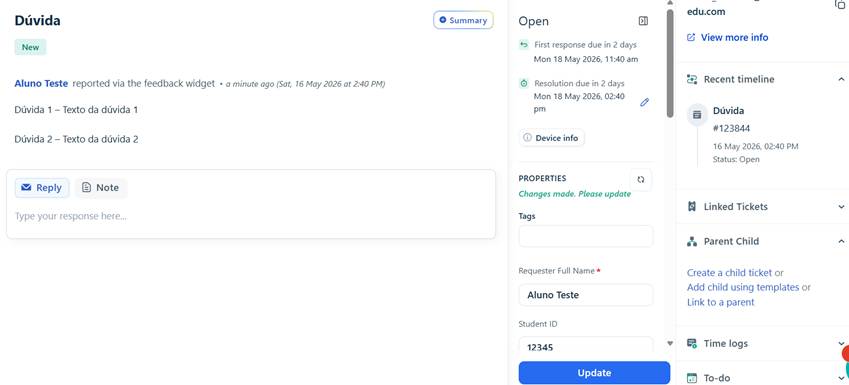
1.2 Locate the related ticket creation option
Within the ticket:
- Check the right-hand side panel
- Look for the option Parent–Child
- Select Create a child ticket
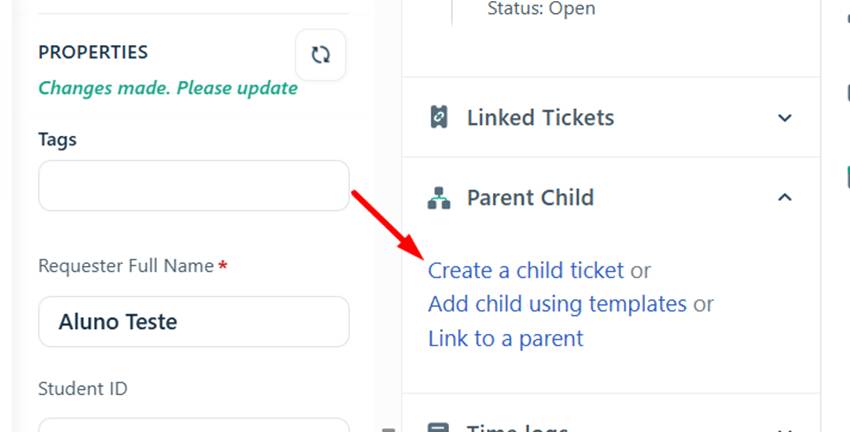
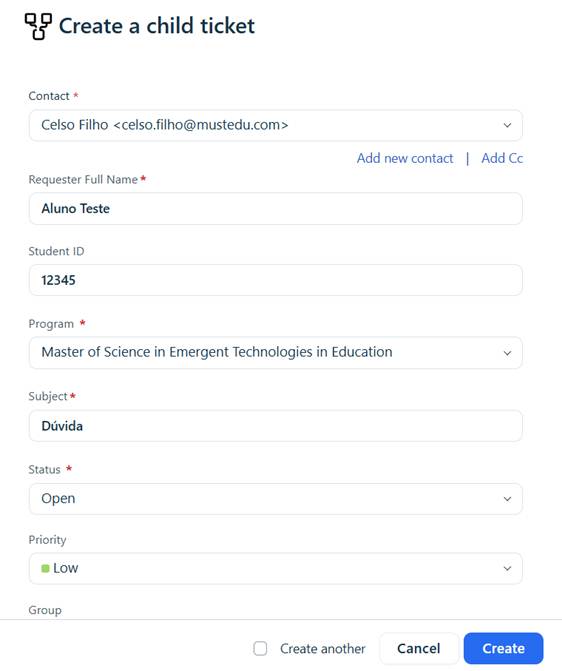
1.3 Define the new ticket (child ticket)
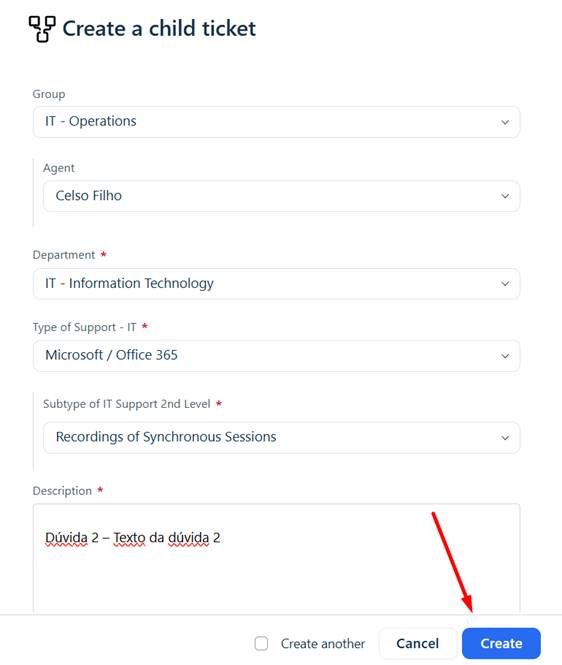
When creating the child ticket, fill in:
- Subject: provide a clear and specific title for the issue
- Description: copy only the relevant part of the student's request
- Assigned group: route the ticket to the appropriate team
- Priority / Type: adjust as needed
Tip: Always keep each ticket focused on a single issue
1.4 Save the child ticket
- Click Create
- The new ticket will be created and linked to the original ticket
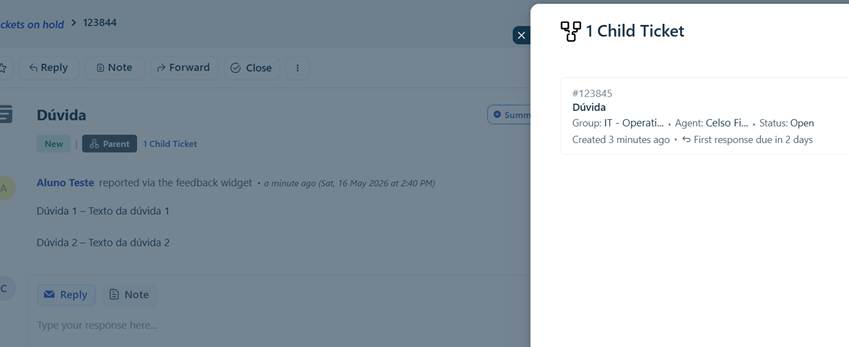
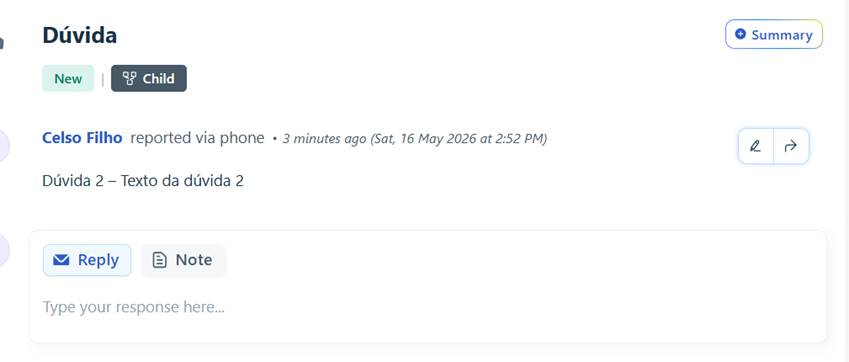
1.5 Update the main ticket
In the original ticket:
- Inform the student that:
- The issues have been separated
- Each one will be handled individually
Expected result
After this process, you will have:
- 1 main (parent) ticket
- Multiple child tickets, each with:
- A specific topic
- A defined responsible agent
- Improved tracking and resolution flow
Can a student reopen an old ticket for a new subject?
It is not recommended, although the student is able to do so.
Reusing old tickets may:
- Cause Freshdesk to automatically reopen the ticket
- Cause the SLA to return as overdue
- Create inconsistencies in reports
If a student uses an old ticket to address a new subject, the agent should:
- Reply to the ticket, clearly stating that the request refers to a new topic
- Instruct the student not to reuse old tickets, explaining that this can impact SLA tracking and response times
- Request that the student open a new ticket, ensuring proper routing to the correct team
- After providing guidance, close the current ticket, when applicable
This practice helps to maintain organized support processes, ensure greater accuracy in time tracking, and prevent inconsistencies in reports.
2. Status, SLA, and Overdue Tickets
Why do some tickets appear as “overdue” even after being answered?
Some tickets may appear as “overdue” even after a response has been sent, because the SLA does not depend solely on the reply provided to the student.
The SLA time is mainly influenced by:
- the ticket status
- and the defined priority level (Low, Medium, High, or Urgent)
This means:
- If the status remains Open, the SLA continues counting even after a response
- Higher-priority tickets (High or Urgent) have shorter deadlines and can reach overdue status more quickly
- The combination of status and priority determines how the SLA behaves throughout the ticket lifecycle
What causes the SLA to continue counting after a response?
Responding to a ticket does not automatically pause the SLA.
The SLA behaves correctly only when:
- The status reflects who is responsible for the next action
In other words:
- If the status is Open, the action is still with the agent
- If the status is Waiting for Customer Response, the action is with the student
Practical difference between statuses
Status | Proper Usage | SLA |
Open | Action is still with the agent | Continues counting |
Pending | Waiting for internal action or external input | Paused (frozen) |
Waiting for Requester Response | Ação depende do aluno | Indicates waiting for the requester before continuing |
The status should always reflect who needs to act next.
Does setting a ticket to pending stop the SLA?
Yes.
When a ticket status is changed to Pending, the SLA is paused (frozen).
This means the SLA time stops being counted while the ticket remains in this status.
As a result, the ticket cannot become overdue during the period it is marked as Pending, since the SLA timer remains paused until the status is changed back to an active one.
Attention: Even with the SLA paused, it is important that the ticket is not left unattended for long periods.
Agents are expected to:
- Regularly monitor tickets in Pending status
- Ensure the student or responsible team has been properly informed
- Resume the process as soon as there is a response, avoiding delays or missed follow-ups
Maintaining this control is essential to ensure high-quality support and a positive student experience.
Important: If a ticket is already overdue before being set to Pending, changing the status to Pending will not remove the overdue status.
This happens because Freshdesk preserves the SLA history, and the recorded breach is not reversed.
When the ticket is moved to Pending:
- The SLA is paused only from that moment onward
- The previously accumulated time remains unchanged
In other words:
- The ticket remains marked as overdue if the deadline has already been exceeded
- The Pending status prevents the SLA from continuing to count, but does not correct past SLA breaches
Why does a ticket reopened months later appear as overdue?
This occurs because:
- Freshdesk reuses the ticket’s historical data
- The accumulated SLA continues from where it left off
For this reason, it is recommended to avoid reopening old tickets for new subjects.
How does the SLA behave when a ticket is transferred between departments?
The SLA continues counting, even when the ticket is transferred between teams.
Multiple transfers increase the risk of the ticket becoming overdue, especially when responsibility is not clearly assigned.
Best practices when transferring a ticket:
- Add an internal note explaining the context
- When transferring to another department, always assign the ticket to a specific agent, ensuring continuity of the service
Why do old tickets appear as overdue in reports?
Freshdesk reports provide a historical and managerial view of the ticket, not just the operational day-to-day view.
This means the report considers the entire lifecycle of the ticket, including:
- time to first response
- reopenings made by the student, even after long periods
- status changes (Open, Pending, Waiting for Customer Response)
- periods when the ticket was pending awaiting a response, either from the student or another team
As a result, a high SLA in the report does not necessarily indicate a performance issue by the agent. For example:
- the ticket may have been responded to within the SLA timeframe
- it may have remained pending waiting for a response
- and may have been reopened later, increasing the total SLA time
These details are visible within the report, allowing clearer understanding that the SLA impact was caused by the ticket history, not by delays in the initial response.
3. Routing and Responsibility
How to prevent tickets from being lost during transfers
- Never transfer a ticket without:
- An internal note explaining the context
- A clearly defined responsible agent
Best practice when transferring: individual or group?
Always assign the ticket to both:
- the appropriate group
- and a specific agent
Transferring only to a group increases the risk of the ticket remaining unattended.
4. Filters, Visibility, and Reports
Why don’t some tickets appear when filters are applied?
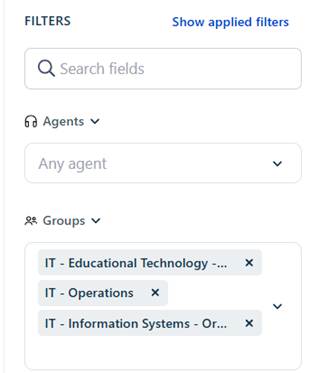
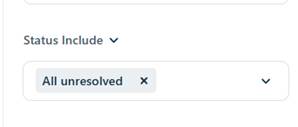
In Freshdesk, filters are automatically saved.
This means that when an agent applies a filter and leaves the page or system, the filter remains active when they return, and is not automatically reset.
As a result, some tickets may not appear in the view, even if they are open or assigned, simply because they do not match the active filter criteria.
Before assuming a ticket is missing, it is important to:
- review active filters
- clear or adjust the filters
- confirm the correct view is being used (group, unassigned, unresolved, etc.)
Recommended filters
- Unassigned tickets
- Tickets by group
- Unresolved tickets
Avoid working only with “My Tickets” view.
5. Internal Notes and Communication
Importance of internal notes
Internal notes:
- Ensure continuity in support
- Reduce rework
- Register the history of actions taken
- Send email notifications when agents are tagged
Do notes generate automatic notifications?
Yes, especially when:
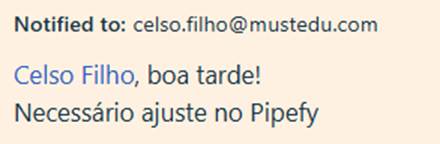
Agents are tagged, triggering an automatic email notification about the note added to the ticket
Are notes recorded in the ticket history?
Yes. Internal notes are part of the complete ticket history.
They are clearly displayed in the ticket timeline, separated from public replies and identified as internal communication between agents.
These notes are not visible to the student and are used to record context, decisions, and important information for continuity of service.
6. Knowledge Base and Materials
Can the student resolve the issue before opening a ticket?
Yes.
The Knowledge Base is composed of informational articles, which are guidance materials created by the teams to help students resolve common questions and procedures (for example: how to find a student ID, how to access platforms, or how to open a ticket correctly).
These articles are available to students and, in many cases, allow issues to be resolved without opening a ticket, speeding up support and reducing repetitive requests.
Knowledge Base link
Solutions : Suporte ao Aluno / Apoyo Estudiantil
Is it possible to suggest related articles based on the ticket topic?
Yes, based on:
- Subject
- Description
- Keywords
Creation of instructional materials for students
It is recommended to create articles such as:
- How to find the student ID
- How to open a ticket correctly
- Which department to select
- How to track a ticket
How to use articles and predefined responses to scale support
- Reduction of repetitive tickets
- Standardized responses
Contact Support
If questions persist or additional assistance is required, please contact the IT team through the support portal:
https://mustedustudents.freshdesk.com/en/support/tickets/new
Was this article helpful?
That’s Great!
Thank you for your feedback
Sorry! We couldn't be helpful
Thank you for your feedback
Feedback sent
We appreciate your effort and will try to fix the article